How to Control Camera Movement in AI Video Projects
Learn how to control camera movement in AI video with film-language prompts, reference images, shot specifications, and 3D-aware workflows for better continuity.
Published
Updated
Topic: AI video model control and cinematography workflows
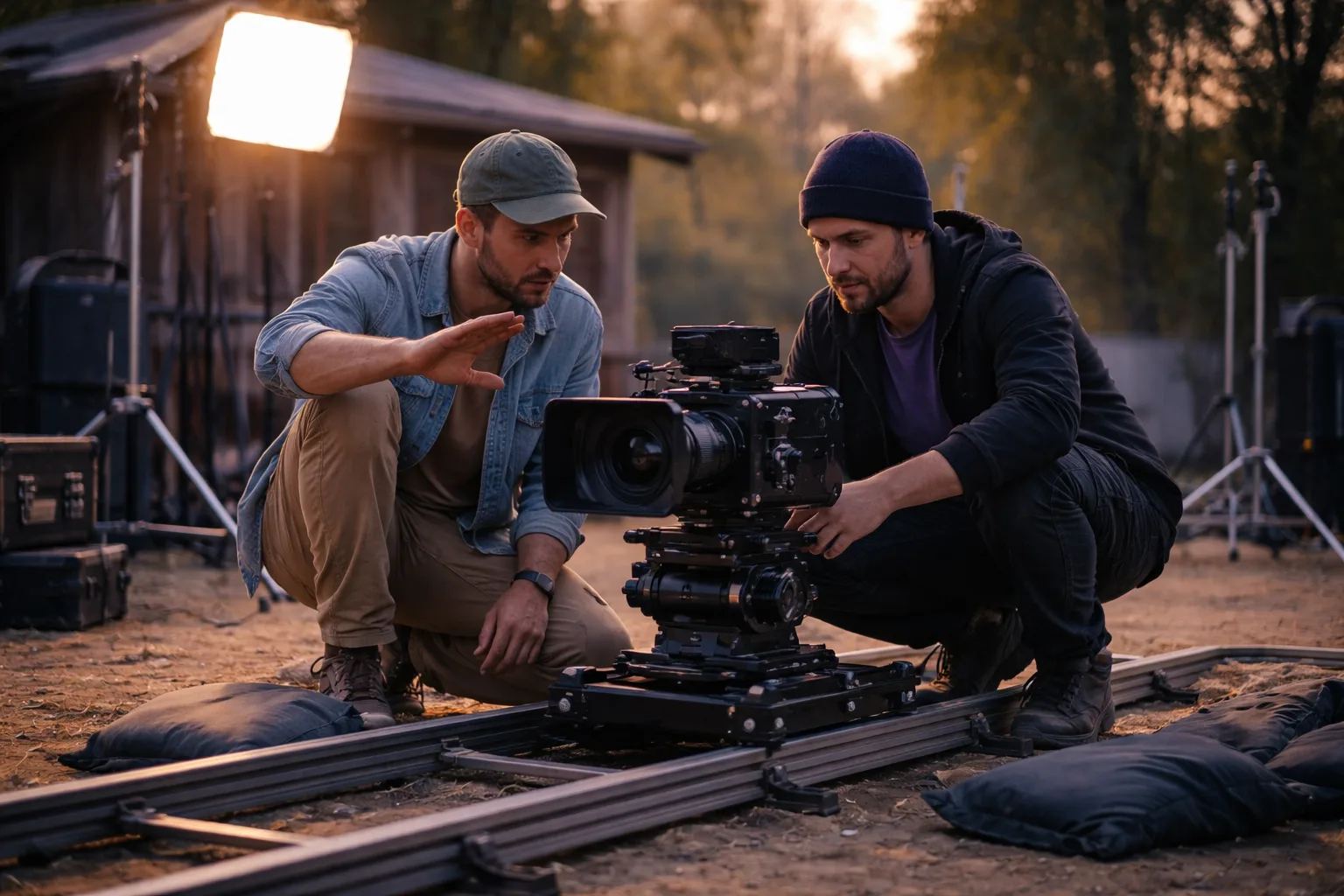
AI video can produce attractive motion while still missing the camera move you intended. A prompt that says “cinematic movement” may generate a push-in, a drifting handheld shot, or a sudden change in viewpoint. For filmmakers, agencies, game designers, and visual artists, the useful question is not simply how to make a video move. It is how to specify a shot so the model has fewer plausible but unwanted interpretations.
The most reliable approach is to treat camera control as shot design. Define the camera’s position, direction, speed, subject relationship, lens impression, and endpoint before describing style. Then choose the input that best carries that information: text for a simple motion idea, a reference image for composition and visual identity, or a more structured and 3D-aware workflow when spatial continuity matters. These methods address different kinds of ambiguity, but every generated result still requires review and revision.
Translate film language into visible constraints
Camera terms are useful because they describe relationships, not just motion verbs. A dolly moves the camera toward or away from the subject. A truck moves it laterally. A crane changes height, usually with a vertical or arcing component. An orbit circles a subject while maintaining a deliberate relationship to it. A pan rotates the camera from a fixed position, whereas a push-in changes the camera’s distance. In practice, AI models may not preserve these distinctions unless the prompt also states what remains fixed and what changes.
Convert each movement into four parts: starting composition, camera action, subject behavior, and ending composition. For example: “Begin in a medium-wide profile shot of a cyclist on the right third. The camera trucks left at a slow, constant speed while keeping the cyclist at the same screen size. End in a clean side-tracking shot as the cyclist passes the bridge.” This gives the model a subject anchor and an endpoint instead of asking for motion without a destination.
Use the movement term together with the camera’s path, subject relationship, and intended speed.
| Shot term | Camera path | Useful constraint | Example wording |
|---|---|---|---|
| Dolly or push-in | Camera moves forward toward the subject | Keep the subject centered and reveal background detail gradually | Slow forward dolly, subject remains centered, no lateral drift |
| Truck or side-track | Camera moves left or right | Maintain a consistent side angle and screen size | Smooth truck right, profile view preserved, constant distance |
| Orbit | Camera arcs around the subject | Keep the subject as the spatial anchor | Quarter orbit around the statue, background shifts continuously |
| Crane or rise | Camera changes height, often while moving | State the starting and ending height or viewpoint | Slow crane up from eye level to an elevated wide view |
| Locked-off shot | Camera remains fixed | Prevent unwanted zoom, pan, shake, or reframing | Static tripod shot, no camera movement, subject moves naturally |
| Rack focus | Camera position stays stable while focus changes | Specify the focus target at the beginning and end | Rack focus from foreground leaf to actor in the doorway |
Sources: Google DeepMind
Build prompts around one primary move
A common mistake is combining several camera instructions that imply different physical setups: “handheld orbit, locked-off composition, fast crane, gentle rack focus, and dramatic zoom.” A human cinematographer might interpret that as a complex shot plan, but a generative model can treat it as competing signals. Start with one dominant camera action. Add a second movement only when it is essential to the shot and describe its timing explicitly.
- State the shot size and starting composition: for example, “wide establishing shot, subject near the left third.”
- Name one primary camera move: “slow dolly forward” or “smooth truck left.”
- Describe the subject’s motion separately: “the runner moves forward at a steady pace.”
- Specify what the camera preserves: “maintain eye-level height and consistent framing.”
- Define the ending state: “finish in a medium shot as the runner reaches the gate.”
- Add lens, lighting, and mood after the movement is clear.
- If the result drifts, remove adjectives before adding more instructions; simplify the shot and test again.
Use speed words carefully. “Slow,” “steady,” and “constant” describe the feel of the move, but they do not establish duration on their own. Pair them with a visible event or endpoint: “a slow, constant push-in until the character fills the frame.” Avoid relying only on “dynamic,” “epic,” or “cinematic.” Those words can influence energy and composition, but they are not precise camera instructions.
A useful prompt pattern separates camera, subject, environment, and style into distinct parts. This makes it easier to revise one variable at a time. If the camera move is wrong, change the movement language without also changing the character, setting, lighting, or mood. A shorter prompt with clear priorities can be easier to evaluate than a long prompt filled with overlapping cinematic adjectives.
Use reference images to anchor composition
Text is good at describing intent, but a reference image can show a starting layout immediately. It can establish the subject’s scale, the horizon, the direction of light, wardrobe, color relationships, and the amount of negative space. This is especially valuable when the desired movement begins from a very particular frame. Google DeepMind lists image-to-video and style-reference image capabilities among the controls associated with Veo 3.1; these inputs are best understood as anchors for visual conditions, not as a promise that every camera path will be reproduced exactly. See the Veo 3.1 overview from Google DeepMind for the model’s documented capabilities.
Choose a reference image that already resembles the opening frame you want. A clean, coherent image is generally more useful than a collage of alternate angles. If the camera should orbit, select a subject with a clear silhouette and a readable environment around it. If the camera should track beside a person, show enough space in the direction of travel. Empty space gives the model visual room to continue the composition rather than forcing the subject against an edge.
Reference images are also useful for iteration. Keep the same image while changing only the move: compare a push-in, a truck, and a short orbit without simultaneously changing the character or location. If the composition is still unstable, simplify the requested action or create a new reference with a clearer perspective. The same comparison method can be used to test different camera speeds, endpoints, and subject relationships while keeping the visual starting point unchanged.
When text and images are not enough
Camera control becomes harder when the shot requires consistent 3D relationships: a character passes behind a column, the camera circles an object, or several foreground and background elements must preserve their relative positions. A model can generate locally convincing frames without maintaining a stable world model across the entire move. Typical symptoms include objects changing shape, appearing or disappearing, backgrounds sliding incorrectly, or the camera taking a shortcut through the scene.
The CVPR 2025 work GEN3C: 3D-Informed World-Consistent Video Generation with Precise Camera Control frames imprecise camera control and objects appearing or disappearing between frames as central problems in existing video generation. Its proposed approach uses a 3D-informed cache to help preserve scene information while applying camera motion. This is research evidence for a broader workflow principle: when spatial continuity is the priority, supplying or deriving stronger scene structure can matter more than adding descriptive adjectives.
A 3D-aware workflow does not have to mean building a feature-length virtual production. For a short shot, you might block the subject, floor, walls, and major props in a simple 3D scene; choose a camera path; render a guide or stills; and use those outputs as visual references for generation. Another option is to create several consistent views of the same subject and environment before attempting the final move. These steps provide more spatial evidence than a single isolated image, although the generated result still needs review.
Choose the workflow by shot difficulty
Use text-first prompting for a simple locked-off shot, a modest push-in, or a short movement where exact geometry is not critical. Use a reference image when the opening composition, character design, or visual style must remain recognizable. Consider a structured or 3D-aware setup when the camera travels around an object, crosses multiple depth layers, passes through an occlusion, or must match a planned edit. This is a practical comparison, not a hierarchy: the simplest method is often the fastest when the shot itself is simple.
A repeatable testing and revision loop
Treat each generation as a camera test rather than a final verdict. Watch the first and last frames, then inspect the middle of the clip for drift. Ask whether the camera moved along the intended path, whether the subject stayed at the requested scale, whether the background behaved like a solid environment, and whether the final composition actually arrived at the stated endpoint. These checks separate camera failure from subject-motion failure.
- If the camera rotates instead of translating, replace vague wording such as “move around” with “truck,” “dolly,” or “orbit,” and state the subject anchor.
- If the subject changes size unexpectedly, specify constant distance or constant screen size and simplify the background action.
- If the background bends or jumps, shorten the move, reduce occlusion, or provide a reference with stronger perspective cues.
- If the shot feels too energetic, remove “dynamic” and “dramatic,” then use “smooth,” “slow,” “constant,” or “locked-off.”
- If the endpoint is missing, describe a visible final composition rather than only a duration or mood.
- If several elements fail at once, return to a single primary move and test the camera before adding sound, effects, or complex choreography.
Keep a small shot log with the prompt, reference image, chosen model or workflow, and the specific failure observed. “Camera drifted left” is more useful for the next attempt than “the result was wrong.” For production, save successful opening frames and use them as references for related shots. Consistency comes from controlled comparisons and reusable shot specifications, not from assuming that a longer prompt will force a particular result.
A practical camera prompt template
A compact template can make shot intent legible without turning every generation into a technical specification. Fill in the fields that matter for the scene and leave out details that do not affect the camera:
“Start with [shot size and composition]. The camera performs a [primary move] at a [speed and quality], while [subject relationship] remains consistent. Preserve [height, distance, screen position, or focus]. End with [specific final composition]. The scene has [lighting, lens impression, and restrained visual style].”
For example: “Begin in a wide, eye-level shot of a red tram entering from the far left. The camera performs a smooth, slow truck right, maintaining a parallel side view and consistent distance from the tram. Keep the station architecture stable as the tram passes. End in a medium-wide composition with the tram centered beneath the canopy. Soft overcast light, natural documentary color, subtle depth of field.” A matching reference image can establish the station and opening frame; a 3D blockout can help when the move depends on exact columns, tracks, and occlusions.
The central lesson is to specify relationships rather than merely naming effects. “Orbit the subject while preserving its scale,” “track beside the vehicle at a constant distance,” and “remain locked off while focus shifts to the doorway” give the model a testable visual objective. Text prompts, reference images, and 3D-aware methods can work together: text expresses intent, images anchor appearance and composition, and spatial structure supports continuity. Use the lightest workflow that fits the shot, inspect every result, and revise the camera plan before adding more style.
Sources
- Veo 3.1 — Google DeepMind, Google DeepMind — Veo 3.1 supports style-reference images, camera controls, image-to-video, and text-to-audio-plus-video generation; Google reports benchmark results for prompt alignment and overall preference.
- GEN3C: 3D-Informed World-Consistent Video Generation with Precise Camera Control, ML Anthology — The study identifies imprecise camera control and objects appearing or disappearing across frames as problems in existing video models and presents a 3D-cache-based approach for improved camera control and temporal consistency.