Text to Video AI: A Practical TryVeo Workflow
Learn how to use text to video AI in TryVeo, choose a model, control credits, check Veo limits, and prepare a reliable clip for publication.
Published
Updated
Topic: AI Video Generation
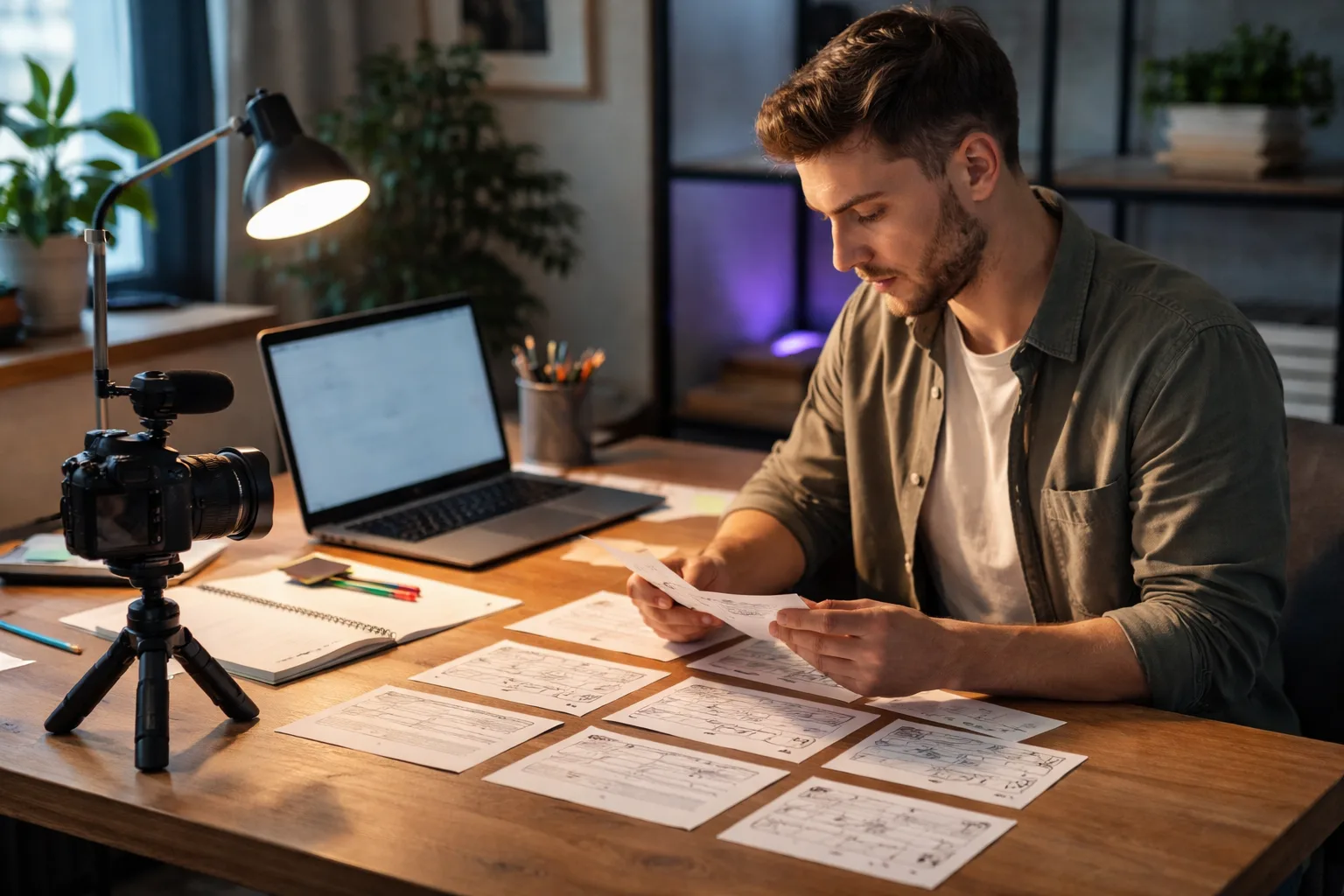
Text to video AI turns a written description into moving images, and TryVeo gives creators a practical way to test that process across different generation types and model families. The useful question is not simply whether a model can make an attractive clip. It is whether you can choose an appropriate model, spend credits deliberately, revise weak shots, and export footage that still works after editing, captioning, and publication. This guide treats generation as a small production workflow rather than a one-click novelty.
At a technical level, text-to-video systems interpret natural-language instructions and synthesize visual content over time. They are useful for education, marketing, entertainment, and accessibility, but research continues to identify alignment, long-range coherence, and computational-efficiency challenges. The survey of text-to-video generation is a useful reminder that a prompt can describe an intention without ensuring that every frame, action, or relationship will be correct.
1. Start with a shot, not a whole video
A dependable first generation begins with a manageable shot. Instead of asking for a complete three-minute advertisement with several locations, characters, lines of dialogue, and a plot twist, define one visual event: a baker opens a sunlit shop, a teacher demonstrates a simple experiment, or a product sits on a desk while a hand places it beside a notebook. Short, clearly bounded actions are easier to inspect and revise than an overloaded scene.
Measured on TryVeo's own production render logs over the last 90 days (397 completed renders with full timing, as of 2026-09-23). Wall-clock from job start to finished file, so provider queueing is included. These are our own measurements, not vendor claims.
| Model | Median render | 90th percentile | Renders measured |
|---|---|---|---|
| veo-3.1-fast-generate-preview | 88s | 128s | 291 |
| seedance-2.0-fast | 199s | 358s | 72 |
| kling-2.5-turbo | 134s | 157s | 18 |
| seedance-2.0 | 307s | 436s | 16 |
Write the prompt as a production brief. Include the subject, action, setting, camera behavior, lighting, visual style, pacing, and sound requirements when the selected model supports audio. Keep the important information near the beginning. For example: “Medium tracking shot of a ceramic mug on a wooden café counter as steam rises and a hand places a cinnamon stick beside it; warm morning window light, gentle camera movement, natural room tone, no on-screen text.” This gives the generator a subject and a single action before adding atmosphere.
Before opening a generation panel, decide what success means. A social post may need a strong first second and a vertical composition. A lesson may need legible action and room for narration. A product asset may need consistent framing and clean negative space. Define the intended aspect ratio, approximate shot length, delivery platform, and whether audio must be generated or added later. These decisions narrow the model choice and reduce avoidable reruns.
2. Route each shot to the right TryVeo model
TryVeo’s active workspace includes text-to-video alongside image-to-video, video continuation, frame interpolation, reference-guided video, video extension, video edit, and video upscale. That range matters because not every production problem is a blank-page prompt. If you already have a character image, product still, or rough clip, a guided or editing workflow may offer more control than regenerating everything from text.
- Choose a text-to-video model for a new shot whose composition can be described clearly.
- Test an audio-capable option when spoken dialogue, synchronized sound, or ambience is central to the scene.
- Use an image-to-video or reference-guided workflow when appearance, framing, or a product design must remain anchored.
- Use continuation or extension when the first clip works and the next beat should inherit its visual direction.
- Use editing or upscaling after you have a worthwhile source clip; do not use post-processing to rescue a fundamentally wrong scene.
Model labels and settings can change, so compare candidates by the job they need to do rather than by a single quality ranking. For speed, begin with a simpler draft model and reserve a higher-control or audio-capable model for the shot that needs it. For character or product continuity, establish a reference asset first. For dialogue, inspect both the spoken words and the mouth movement; an attractive image does not make an unusable line recording acceptable.
TryVeo’s AI models directory and text-to-video feature page can help you identify the available workflow before you spend credits. Treat the first pass as a controlled comparison: keep the prompt, duration, and framing stable while changing one model or one meaningful setting at a time. Otherwise, you will not know whether an improvement came from the model, the prompt, or random variation.
These are documented Google Veo 3.1 constraints, not universal limits for every model or every TryVeo workflow. Check the selected model and current interface before generating.
| Setting | Documented Veo 3.1 behavior | Production implication |
|---|---|---|
| Input | Text-to-video, image-to-video, and video-to-video | Select the workflow that matches the material you already have. |
| Duration | 4, 6, or 8 seconds | Break longer scenes into deliberate shots or extensions. |
| Resolution | 720p by default; 1080p and 4K at 8 seconds | Do not assume higher resolution is available at every duration. |
| Audio | Natively generated audio | Review dialogue, ambience, and synchronization separately. |
| Frame rate | 24fps | Plan edits and delivery around the documented frame rate. |
| Request output | One video per request | Budget review time and credits for multiple candidate generations. |
Sources: Google AI for Developers
3. Generate economically, then review the actual clip
TryVeo uses one credit balance for the billing period: each generation deducts the configured credit cost of the selected model. That makes model choice part of production planning. A cheaper exploratory pass can answer composition questions before you use a more expensive model for a near-final shot. Do not spend the whole balance on a single elaborate prompt before you know whether the character, camera direction, and timing are viable.
The current trial lasts three days, grants 240 credits, permits 80 credits per 24 hours, and limits trial users to one generation per 24 hours. The active monthly plans are Starter with 500 credits and a 150-credit daily cap, Pro with 1,500 credits and a 250-credit daily cap, Business with 4,500 credits and a 600-credit daily cap, and Corporate with 10,000 credits and a 1,200-credit daily cap. Annual versions are also available with the plan-specific credit balances shown at checkout. Because TryVeo marketing surfaces display a weekly-equivalent price while the billing total appears at checkout, in the Terms, and on receipts, verify the final total before subscribing. The pricing page is the appropriate place to check the current offer and billing presentation.
When the render arrives, review it in four passes. First, check prompt alignment: is the subject present, is the action completed, and did the camera move as requested? Second, check motion: look for warped hands, unstable faces, object deformation, sudden speed changes, and physics that distract from the message. Third, check audio: listen for unwanted words, clipped speech, abrupt ambience, and timing that makes the clip difficult to edit. Fourth, check continuity: compare the shot with neighboring clips for wardrobe, lighting, camera direction, and character appearance.
Our own measurements of four models will be attached below this section. Use that telemetry as a planning reference for measured render behavior, not as a permanent expectation: queue conditions, prompt complexity, model updates, and account conditions can change the time from request to finished file. The practical lesson is to leave review and revision time in your schedule rather than treating generation time as the entire production timeline.
4. Revise, extend, and prepare for publication
Revise one failure at a time. If the subject is wrong, simplify the description and move the subject and action earlier. If motion is unstable, reduce the number of simultaneous actions and use a more explicit camera instruction. If the composition is close but the identity is drifting, move to an image-to-video or reference-guided workflow. If the ending feels abrupt, use continuation or extension only after confirming that the original clip is strong enough to serve as the visual anchor.
- Save the prompt, model, settings, source images, and generation date for every candidate you may use.
- Select the cleanest clip based on message, motion, audio, and continuity—not just the most cinematic frame.
- Trim dead time and remove unusable transitions before adding effects or music.
- Add captions, titles, narration, or replacement audio in an editor when generated sound is unclear or unsuitable.
- Check aspect ratio, safe areas, contrast, spelling, pronunciation, and accessibility at the intended playback size.
- Confirm that people, brands, voices, music, locations, and source assets are cleared for the intended use.
- Export a review copy, watch it without the editing timeline, and inspect the final file after upload or download.
Provider documentation says generated Veo videos are retained on the server for two days before removal. Download or transfer a useful result promptly, and keep your own organized project copy. The same documentation records one video per request, 24fps, and short 4-, 6-, or 8-second durations for Veo 3.1, so a longer publishable sequence should be treated as an edit assembled from controlled shots rather than assumed to emerge as one uninterrupted generation. See the Google Veo 3.1 documentation for provider-level details.
For a final quality and rights pass, consider whether the result is understandable without sound, whether captions are accurate, and whether the synthetic nature of the footage needs disclosure for your channel or campaign. TryVeo’s guides on making AI-generated videos accessible and disclosing AI-generated videos clearly can support those checks. The strongest text-to-video workflow is not the one that generates the most footage; it is the one that turns a clear brief into a small set of reviewable, editable, and properly prepared shots without wasting credits.
Sources
- TryVeo – AI Video, Image & Music Generator | 135+ Models, TryVeo — Video, image, music and voice — 135+ models, one subscription, first creation free. Text to Video — Just describe what you want — AI generates 1080p video with sound, dialogue and cinematic motion in minutes. AI models 135+; video 64.
- Pricing – TryVeo AI Platform | Free Trial Available, TryVeo — TryVeo subscription plans: Starter, Pro, Business, Corporate. Start your 3-day free trial with 240 free credits. Starter billed monthly 19.00 EUR, 500 credits, daily credit cap 150. Pro billed monthly 29.00 EUR, 1,500 credits, daily credit cap 250. Business billed monthly 49.00 EUR, 4,500 credits, daily credit cap 600. Corporate billed monthly 79.00 EUR, 10,000 credits, daily credit cap 1,200.
- Generate videos with Veo 3.1 in Gemini API , Google AI for Developers — Veo 3.1 is a model for generating 8-second videos (720p, 1080p, or 4k) with natively generated audio. Veo 3.1 and Veo 3.1 Fast support Text-to-Video, Image-to-Video, Video-to-Video; output resolution is 720p, 1080p (8s length only), 4k (8s length only); frame rate is 24fps; video duration is 8 seconds, 6 seconds, or 4 seconds; videos per request is 1. English (EN) is fully supported. Generated videos are stored on the server for 2 days, after which they are removed.
- Frequently Asked Questions – TryVeo, TryVeo — TryVeo is a platform that creates videos from text using AI technology. It uses Google Veo 3 model to generate high-quality videos. To create a video, simply write a text description of your video, and AI will create a professional video for you. On average, your video is ready in 1 minute. This duration may vary depending on video complexity and system load.
- Bridging Text and Video Generation: A Survey, arXiv — Text-to-video (T2V) generation technology holds potential to transform multiple domains such as education, marketing, entertainment, and assistive technologies for individuals with visual or reading comprehension challenges, by creating coherent visual content from natural language prompts. Yet challenges persist, such as alignment, long-range coherence, and computational efficiency.